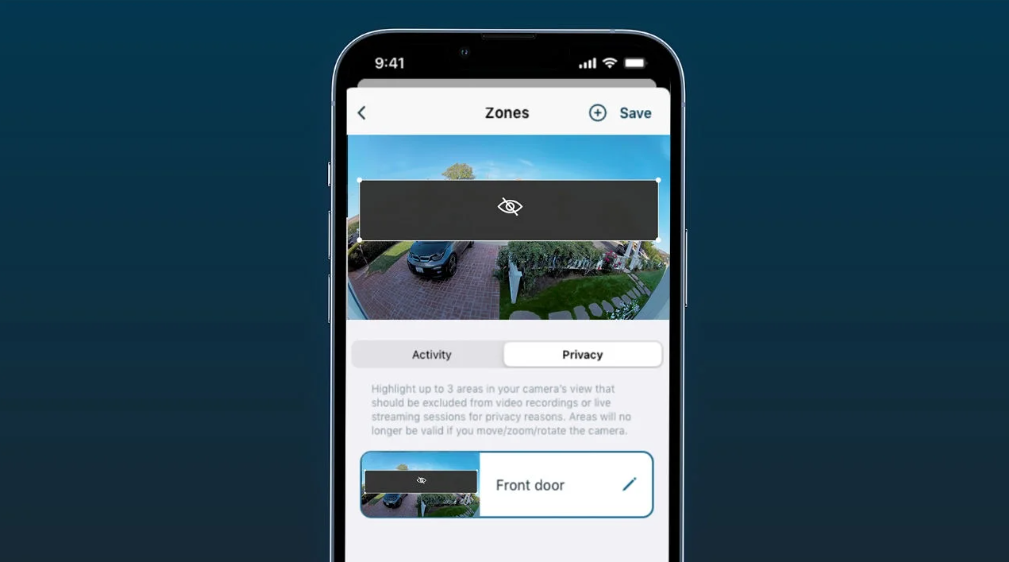
You can set up to 3 Privacy Zones in your camera’s Field of View, using either 4 anchor points (forming a rectangle) or 8 points (in case you want to block out a more specific area, like the shape of a neighbor’s house). How to create Privacy Zones: 1. Open the Arlo Secure App and tap on Devices. 2. Select the device you’d like to set Privacy Zones on. 3. Tap the gear icon and select Zones, then Privacy Zones. 4. Tap Add to begin shaping your Privacy Zone. 5. To resize the Privacy Zone, tap and hold each anchor point and then drag the points of the zone to the desired size and shape. 6. To reposition the Privacy Zone, tap and hold inside the Privacy Zone and then drag the zone to reposition it. 7. You can customize the zone by giving it a name (e.g. “Neighbor’s yard”). Tap the pencil/edit icon, type the desired name, and tap Done. 8. If you want to remove the Privacy Zone, select the zone, move the slider on the left side and tap on the red trash icon or DELETE. Important note: Auto Zoom and Tracking will disable Privacy Zones. If you want to retain the Privacy Zone, make sure to disable Auto Zoom and Tracking in Settings. |